Appearance
Canvas
Overview
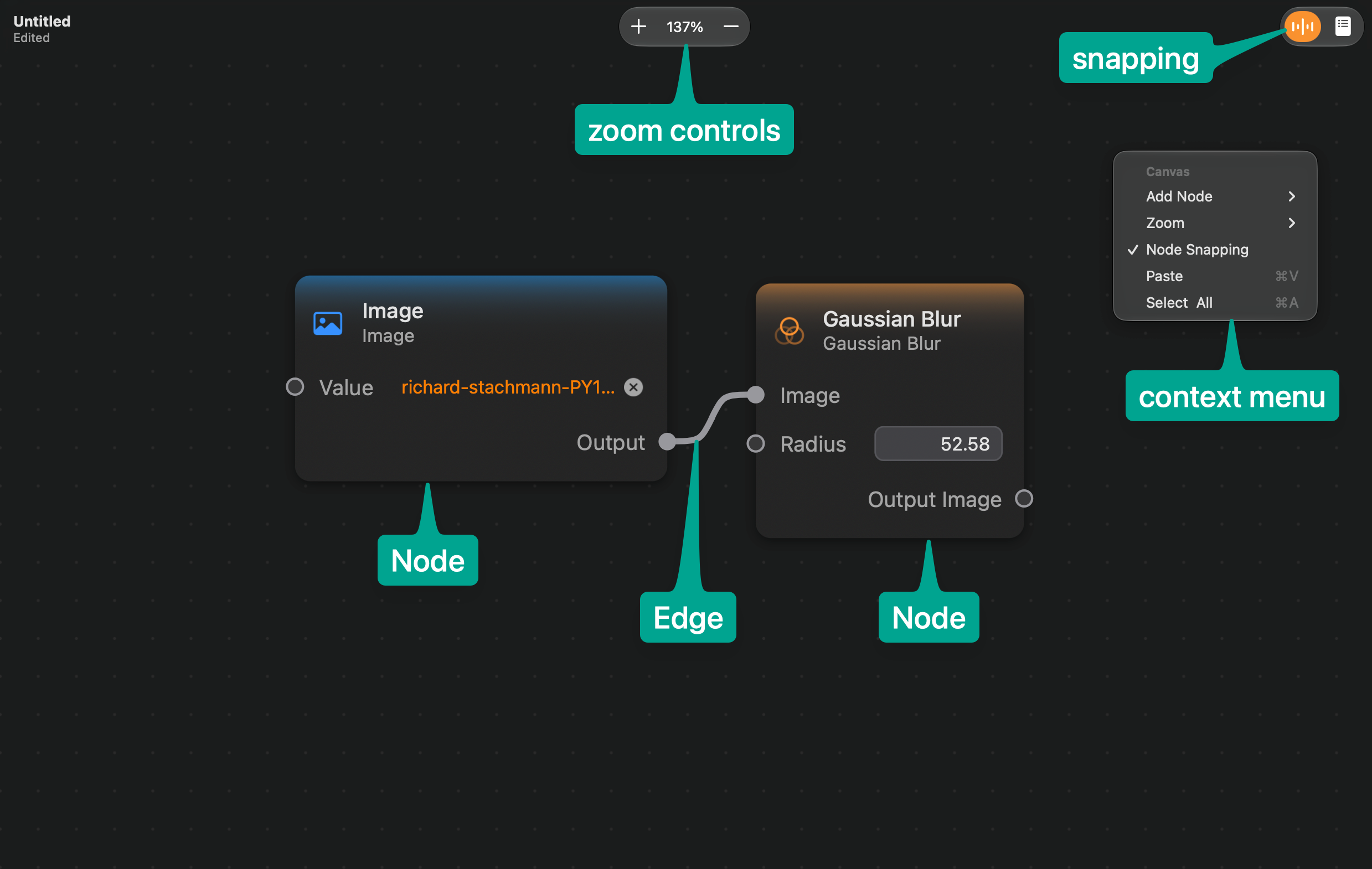
The Canvas is the main stage of the ImageFlow document. Here you can add and connect the nodes that form your document's graph.
Adding Nodes to the Canvas
To add nodes to the canvas, you can either:
- Drag the node from the node palette on the left sidebar into the canvas.
- Double-click the node int the node palette on the left sidebar, which will create an instance of the node in the canvas' viewport center.
- Pressing the
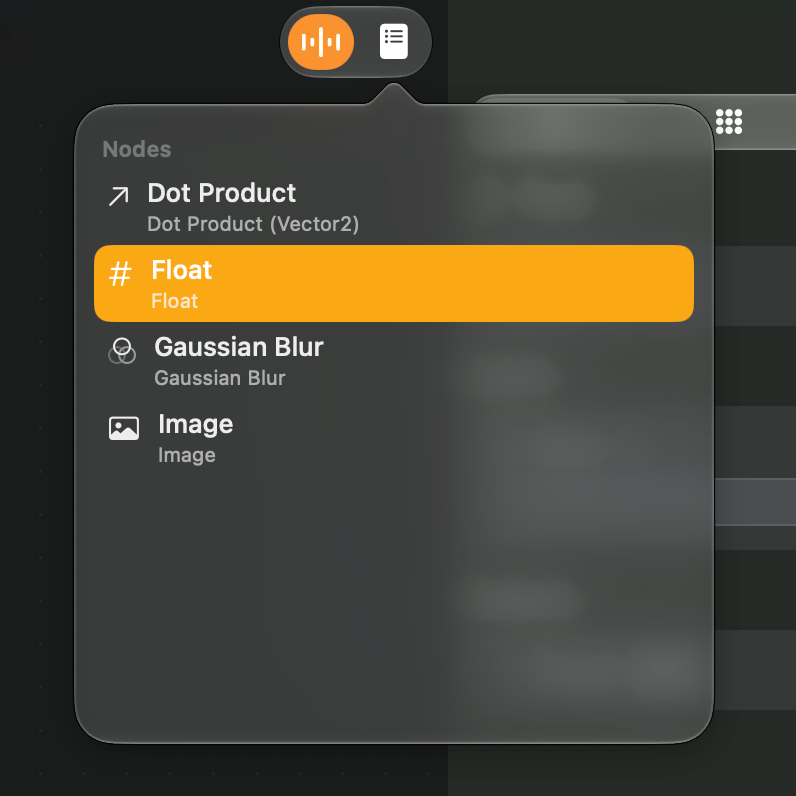
Spacekeyboard key will open the Node Palette Popover. It displays a searchable list of nodes, which you can navigate using your mouse or using the keyboard shortcutsControl + n(select next) andControl + p(select previous). Pressing enter on the selected node in the palette or clicking it with the mouse will create a node at the position where the popover was created.
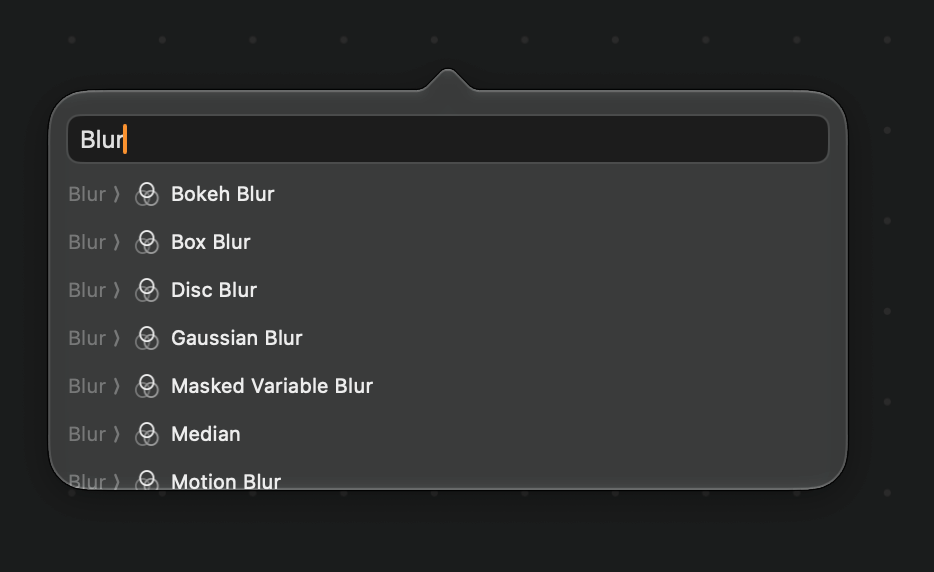
- When you drag the port of a node to create an edge, ending the drag operation in an empty area of the canvas will also open the Node Palette Popover, filtered to show only the nodes that can be connected to that node port. You can then select a node from the palette and it will be created and connected to the dragged port.
Interacting with the Nodes
Moving Nodes
Nodes in the canvas can be dragged to be moved around and repositioned. By default nodes can be moved freely, but you can make nodes snap to the background grid by clicking on the snapping button on the toolbar, which will toggle this feature on or off.
If you have more than one node selected, dragging them will move them in group.
Selecting Nodes
Selected nodes are drawn with an outlined border around them:
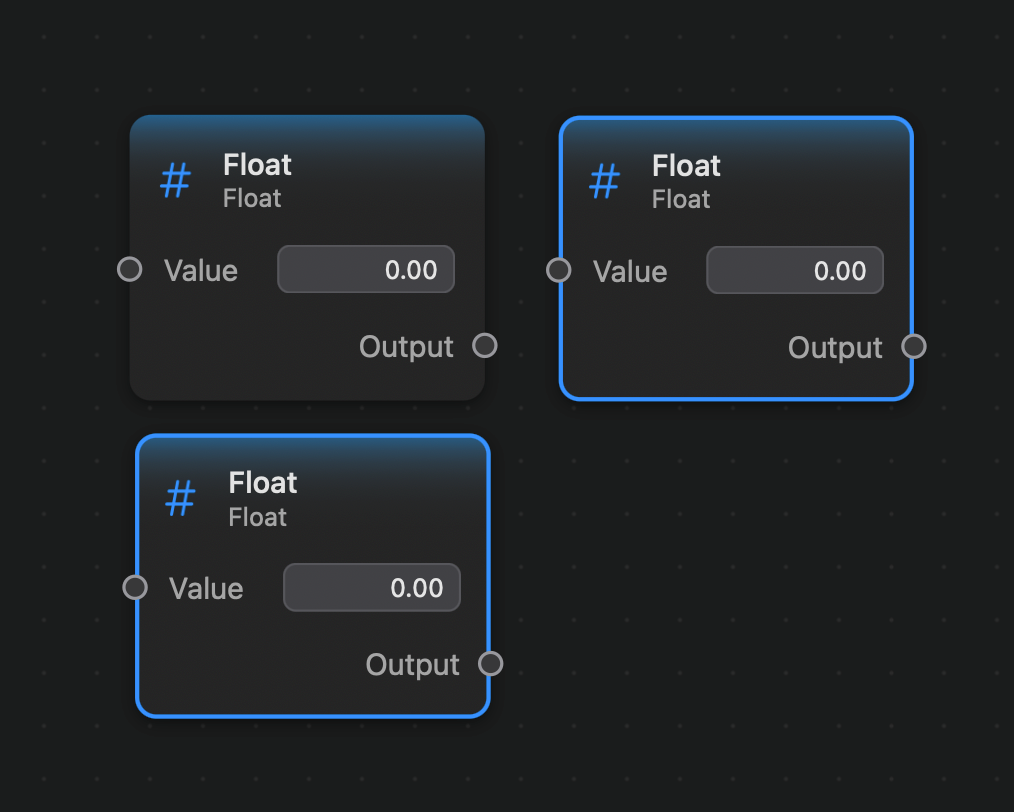
You can select nodes by:
- Clicking on a node. If you hold the
Shiftkey while selecting the selection will be additive, and you can click multiple nodes in sequence to select them. - Pressing
Command + awill select all the nodes. Alternatively, clicking onSelect Allon the canvas' context menu orEdit -> Select Allon the app menu will perform the same action. - Dragging the canvas starting from an empty area will perform a rectangular selection. Pressing down
Shiftwhile doing that will perform an additive selection.

To deselect nodes you can click on the canvas' background, or press the Shift+Command+a keyboard shortcut.
Yet another way to control node selection is to use the Node List button on the toolbar. Selected nodes will be outlined on the list, and you can select nodes by clicking on the list items.
Creating Edges

To create edges between nodes, all you need to do is drag one of the node ports you wish to connect into the other port.

Edges can only be created between compatible ports. If two ports are incompatible, the dragged edge will be drawn in red and an error message will appear saying why the edge can't be created.

Two ports are compatible and an edge can be created between them when:
- One port is an output port and the other is an input port. That is, you can connect two output ports or two input ports.
- Both ports must correspond to values with compatible types.
- Creating the edge must not create a cycle in the graph, as in the case below:

Removing Edges

To remove an existing edge, drag-out its input port, dropping the partial edge into an empty area of the canvas:
Canvas Navigation
Here are the ways you can navigate the canvas viewport:
- Using the mouse, you can move the viewport by middle-click-dragging the canvas.
- Using the trackpad, you can move the viewport by the two-finger scrolling gesture.
- Using the mouse, you can zoom in and out the current mouse position by using the scroll-wheel.
- Using the trackpad, you can zoom in and out via the pinch-zoom gesture.
Zoom Controls
You can use the zoom controls in the app's toolbar to change the current zoom levels:
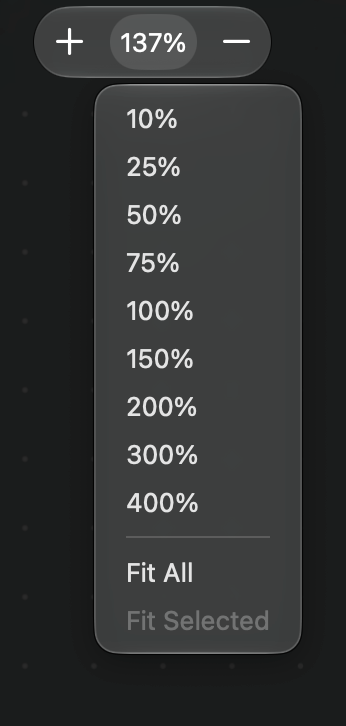
The Fit All button will set a zoom level that shows all the nodes in the canvas (if possible within the allowed zoom levels). The Fit Selected will attempt to fit all the selected nodes in the viewport.
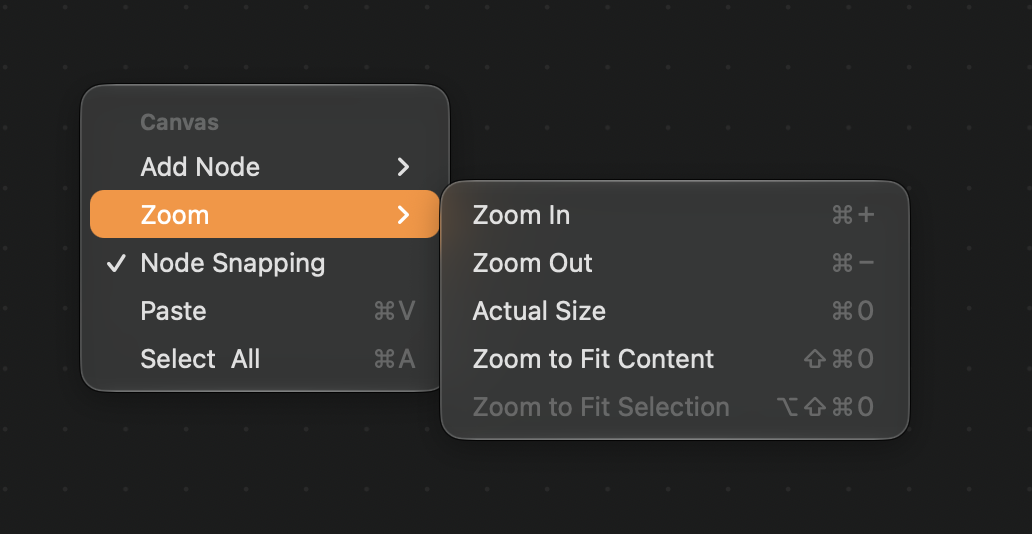
The canvas' context menu also has similar zoom controls:
Importing Images


You can import images into your ImageFlow document by dragging and dropping them from the finder or other applications into the canvas.
You can also paste images from the clipboard into the canvas.