Appearance
Asset Browser
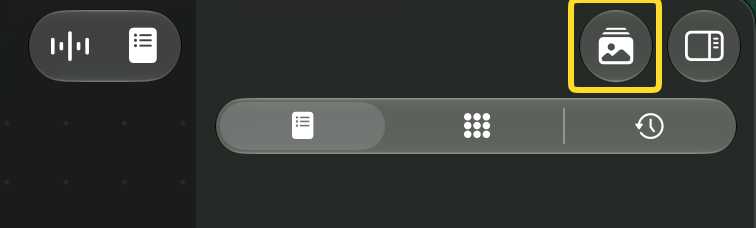
The Asset Browser window allows you to view and manage all images imported into the current ImageFlow document.
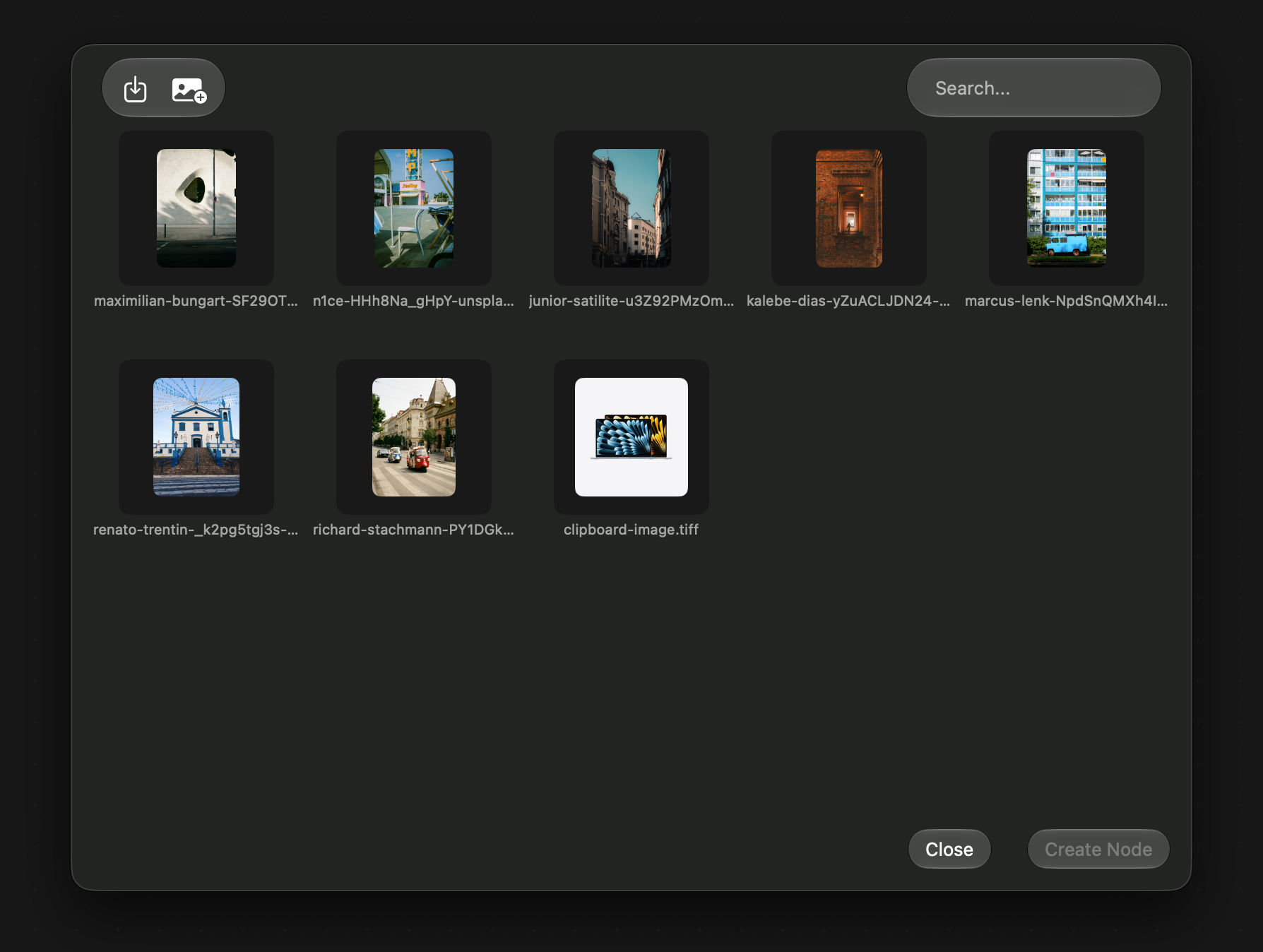
To open it, click on the Asset Browser button on the toolbar:
Or click on the View -> Show Asset Browser item on the app's menu, or use the Shift + Command + b keyboard shortcut. Nodes which use images as input will also open the asset browser when you click on the Select... button, allowing you to select an image from the asset library to use as a value.
To import images into your asset library, click on the Import Image button or on the Open Photo Library button.
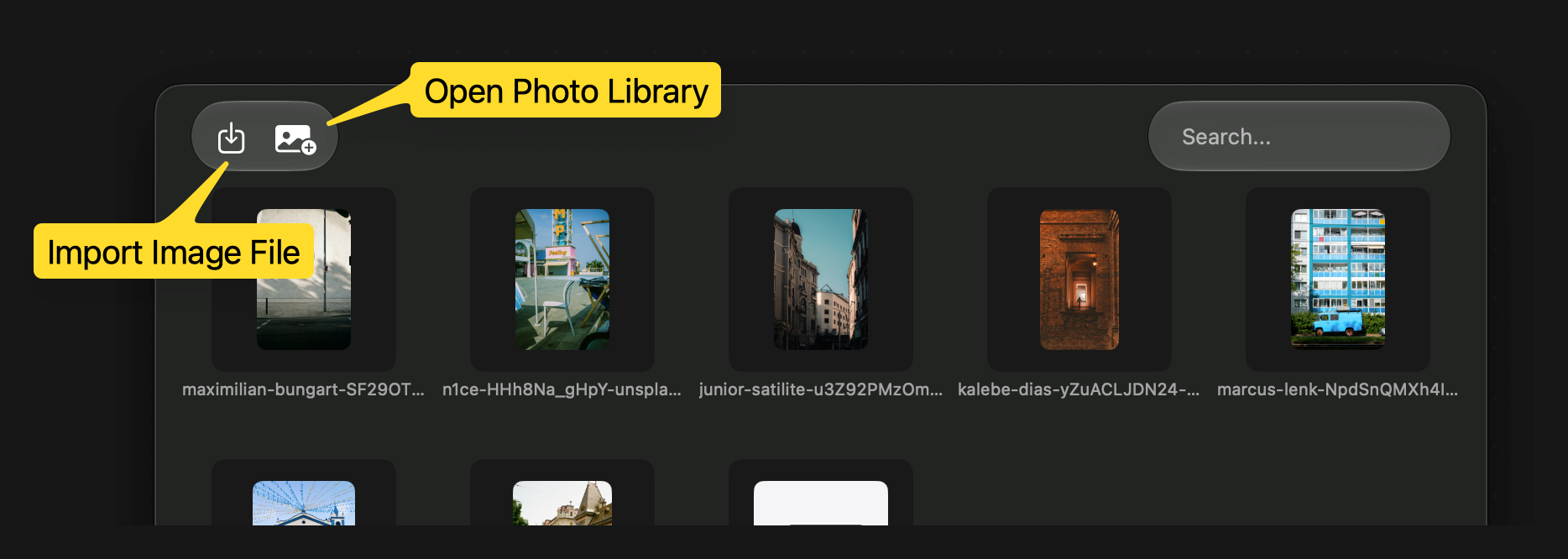
The Import Image button will open a file dialog where you can pick image files from your filesystem to import into your asset library. The Open Photo Library will open a window where you can pick photos from your iCloud photo library to import into your asset library.

You can also drag-and-drop images from finder or other applications directly into the asset browser to add them to your library:
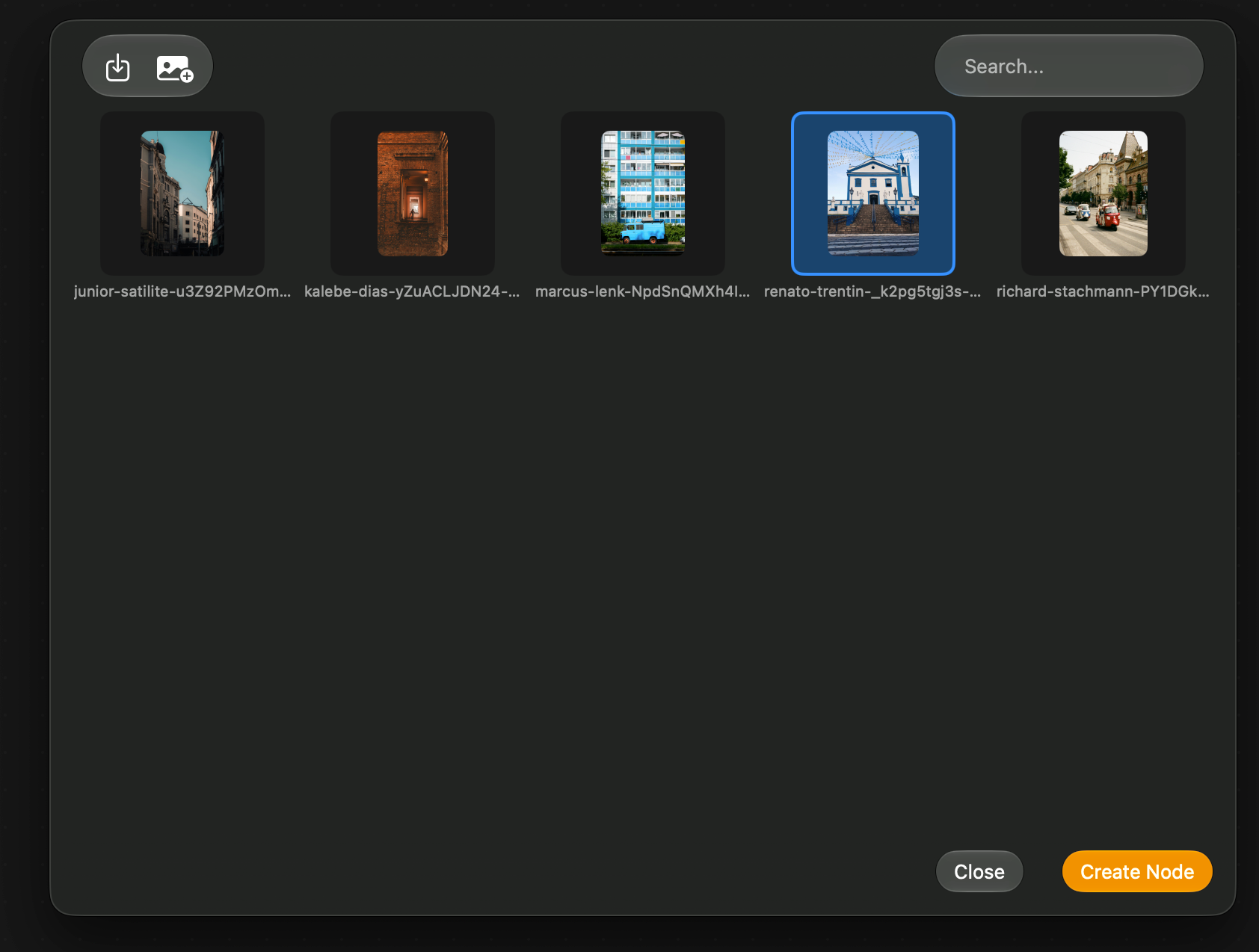
When you select an image, you can click the Create Node to create an Image node with the selected image as a value.
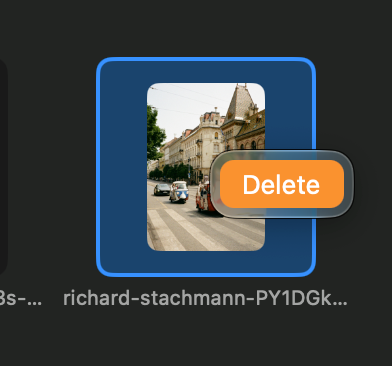
You can remove images from your library by right-clicking the image and choosing the Delete item on the context menu.